





MadVR 介紹
- 官方網站上沒有madVR的下載連結
Change Log: https://forum.doom9.org/showthread.php?t=146228
下載頁面: https://www.videohelp.com/software/madVR
所有版本: https://www.videohelp.com/software/madVR/old-versions#download
如果之前安裝過其他版本的madVR,建議先解除安裝舊版本。
本文沒有針對HDR設定的教學
LAVFilter 解碼器
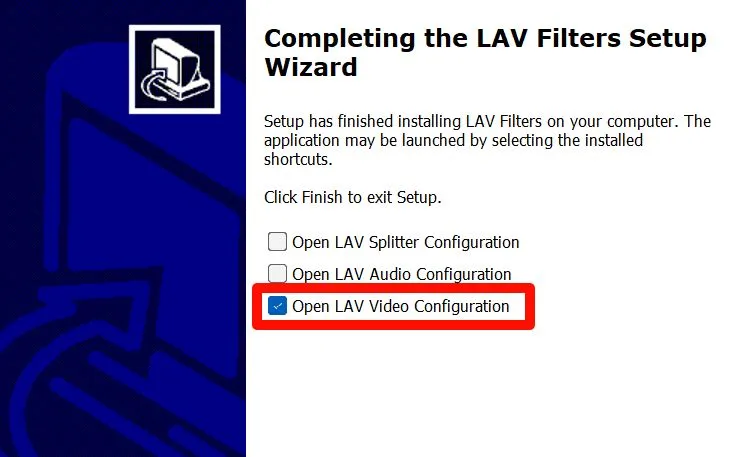
- 依圖片設定LAVFilter
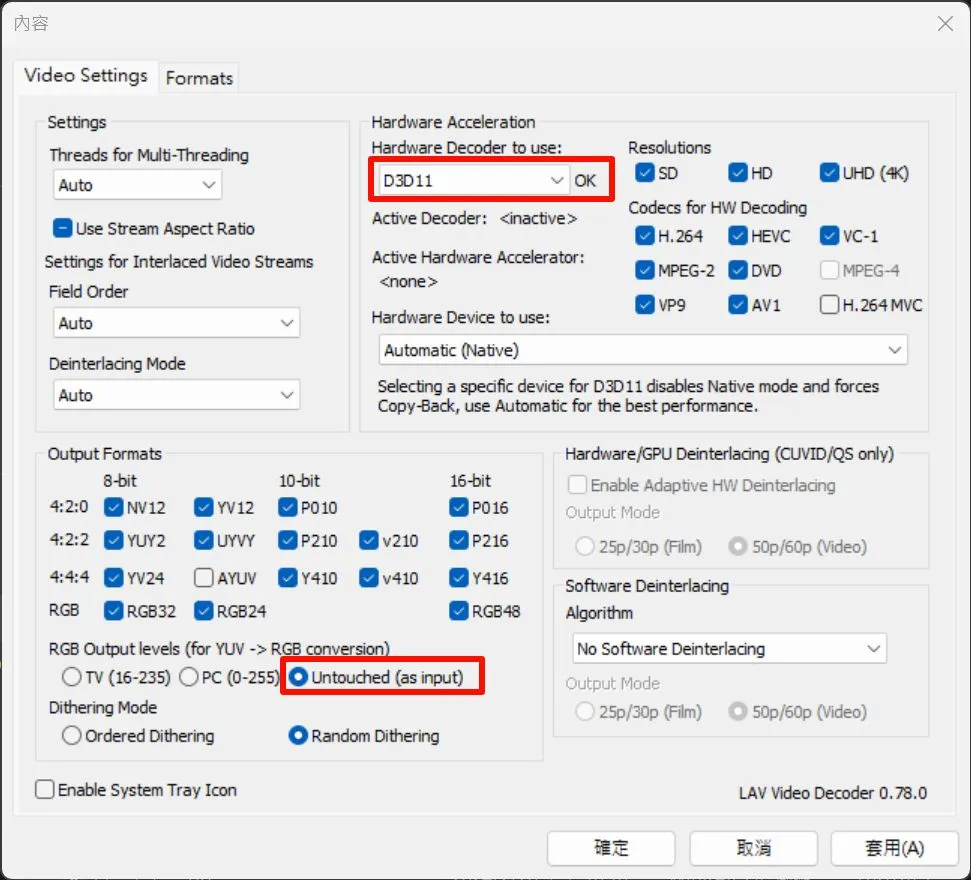
音訊建議使用 LAV Audio Decoder
PotPlayer 設定
-
安裝PotPlayer (MPC-BE也可以使用madVR)
-
到偏好設定在右下角初始化
-
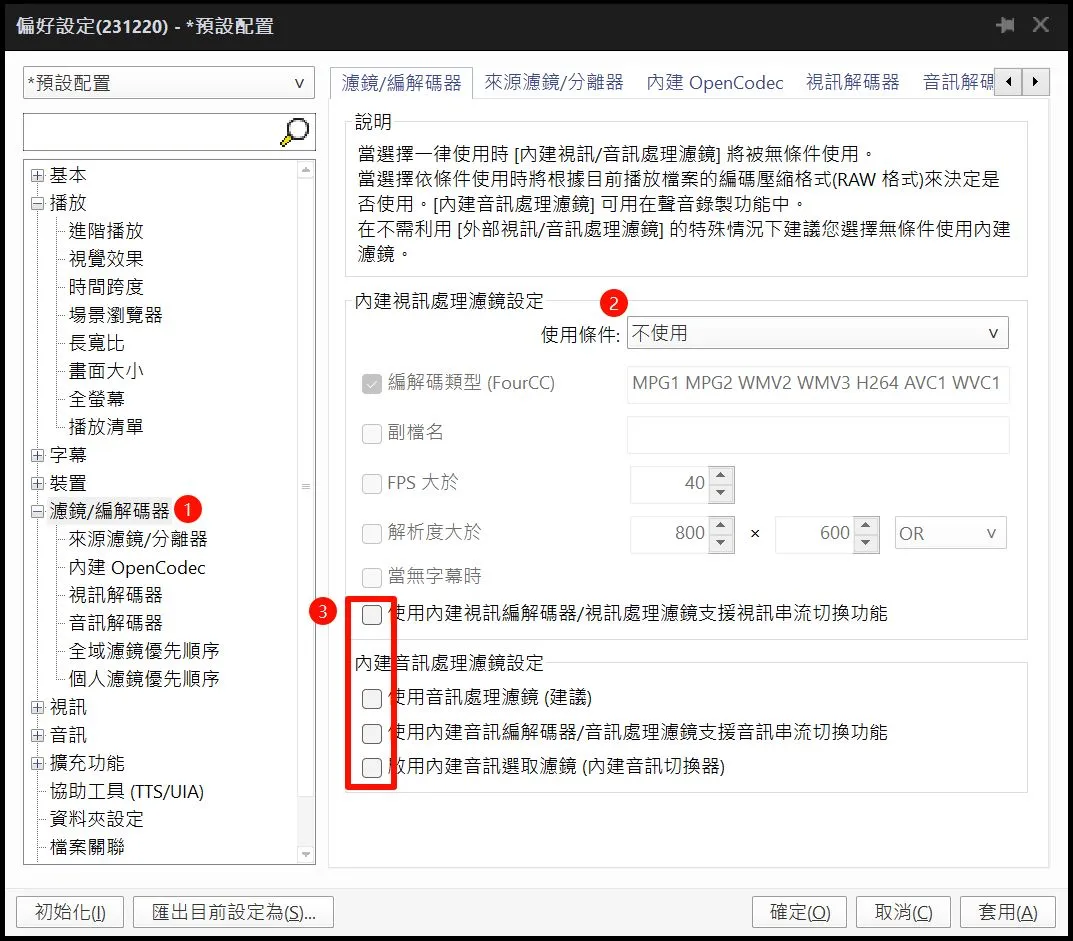
濾鏡/解編碼器 > 內建視訊處理設定 選擇 “不使用”
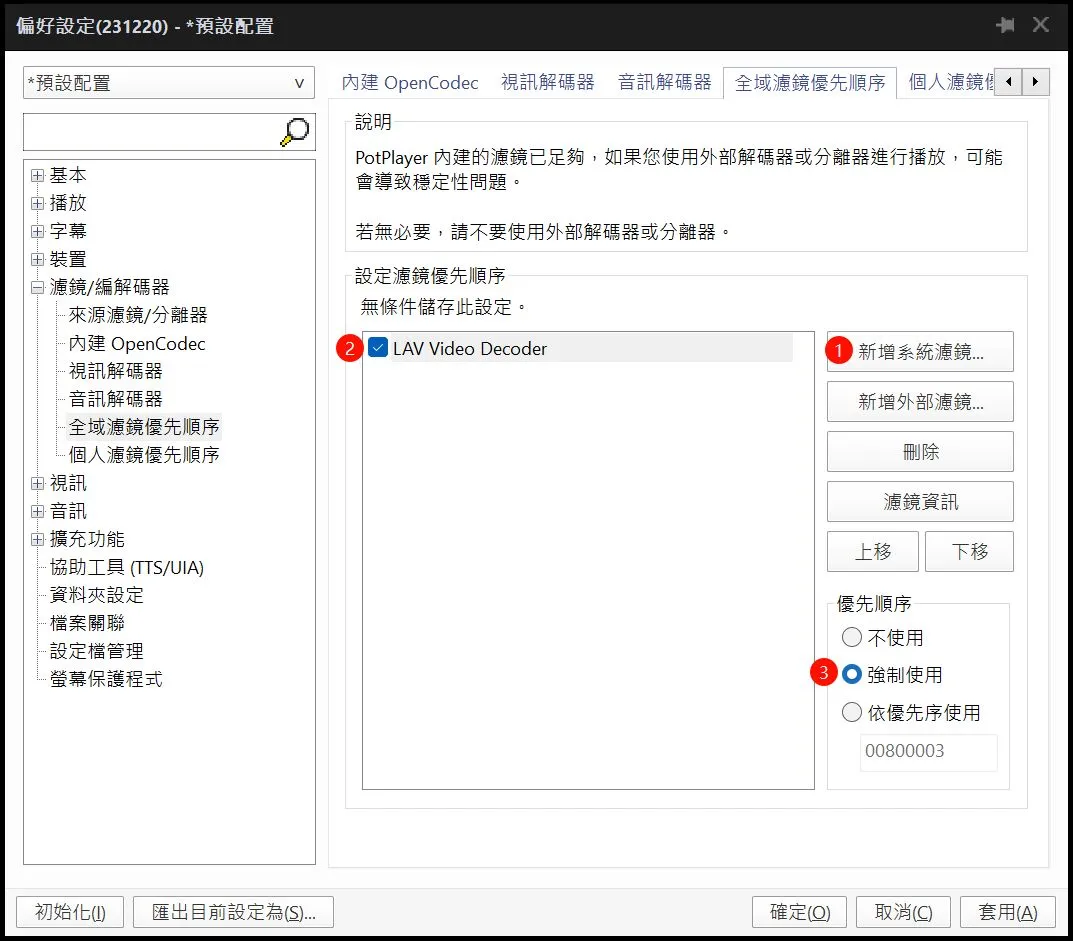
- 濾鏡/解編碼器 > 全域濾鏡優先順序 新增系統慮鏡 “LAV Video Decoder” 優先順序選擇強制啟用
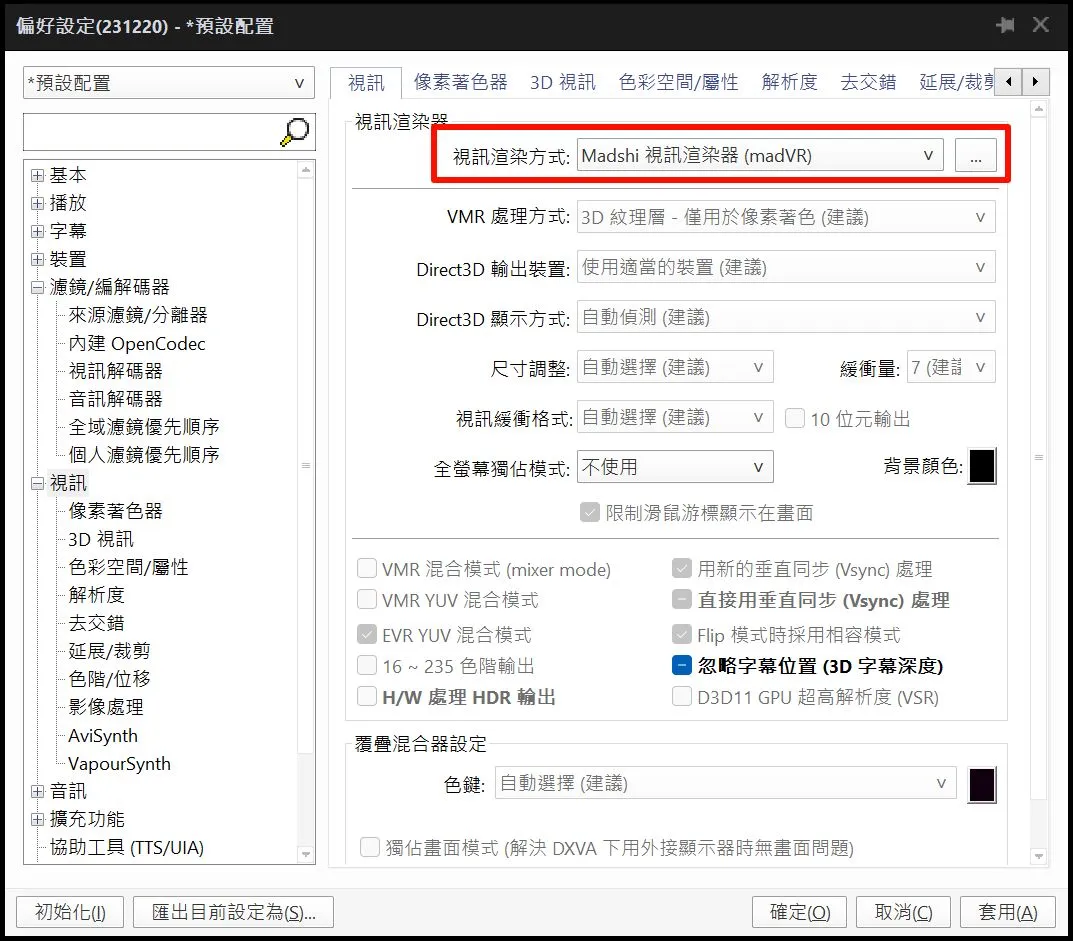
- 視訊 > 視訊渲染方式 > madVR
PotPlayer使用獨佔模式可能有全螢幕下時間軸不顯示的Bug
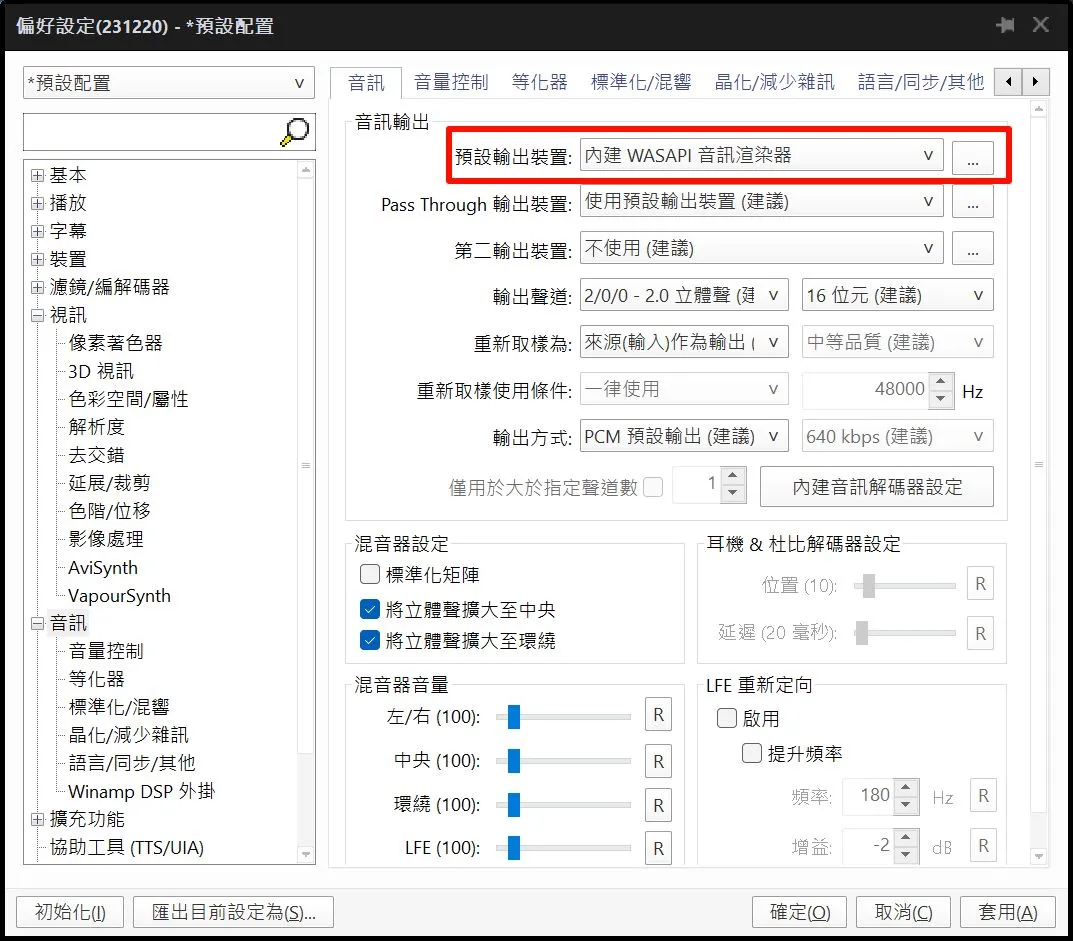
- 音訊 > 預設輸出裝置 內建WASAPI
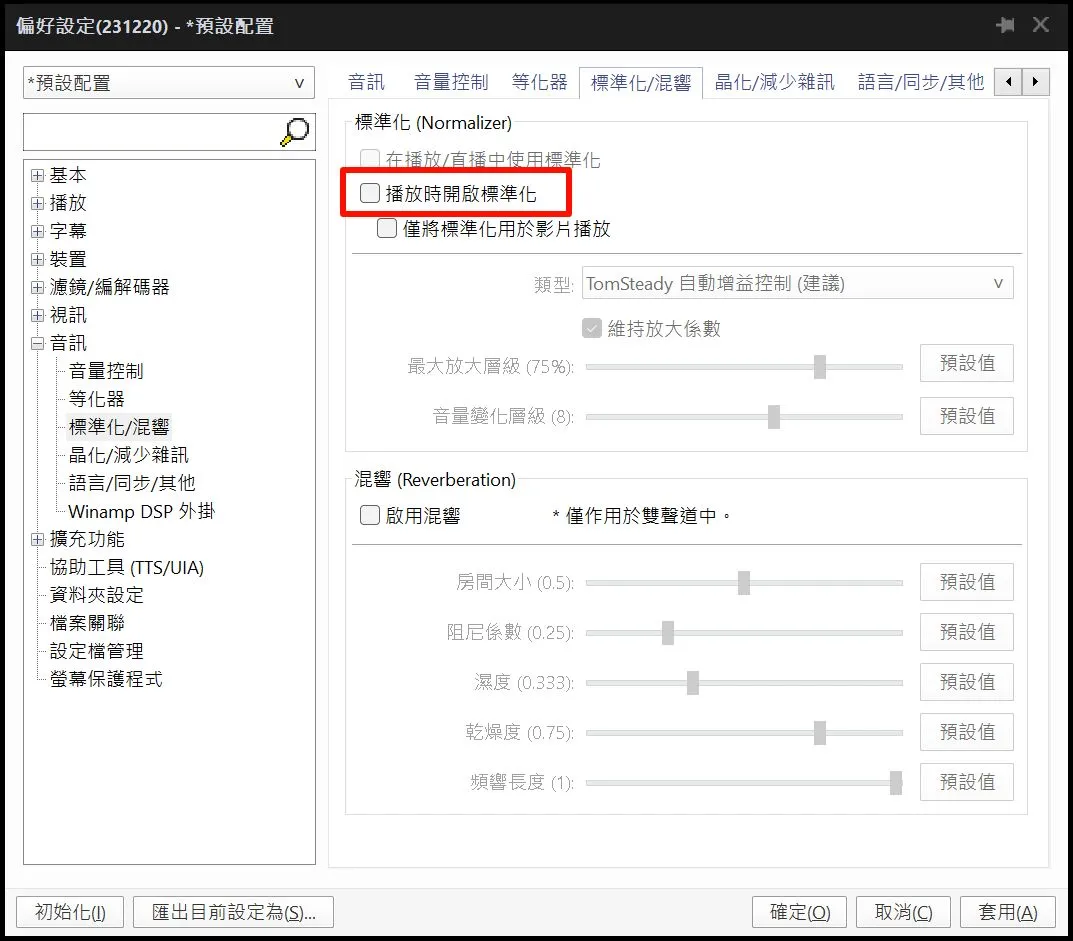
音訊 > 標準化 > 取消勾選 (依需求設定)
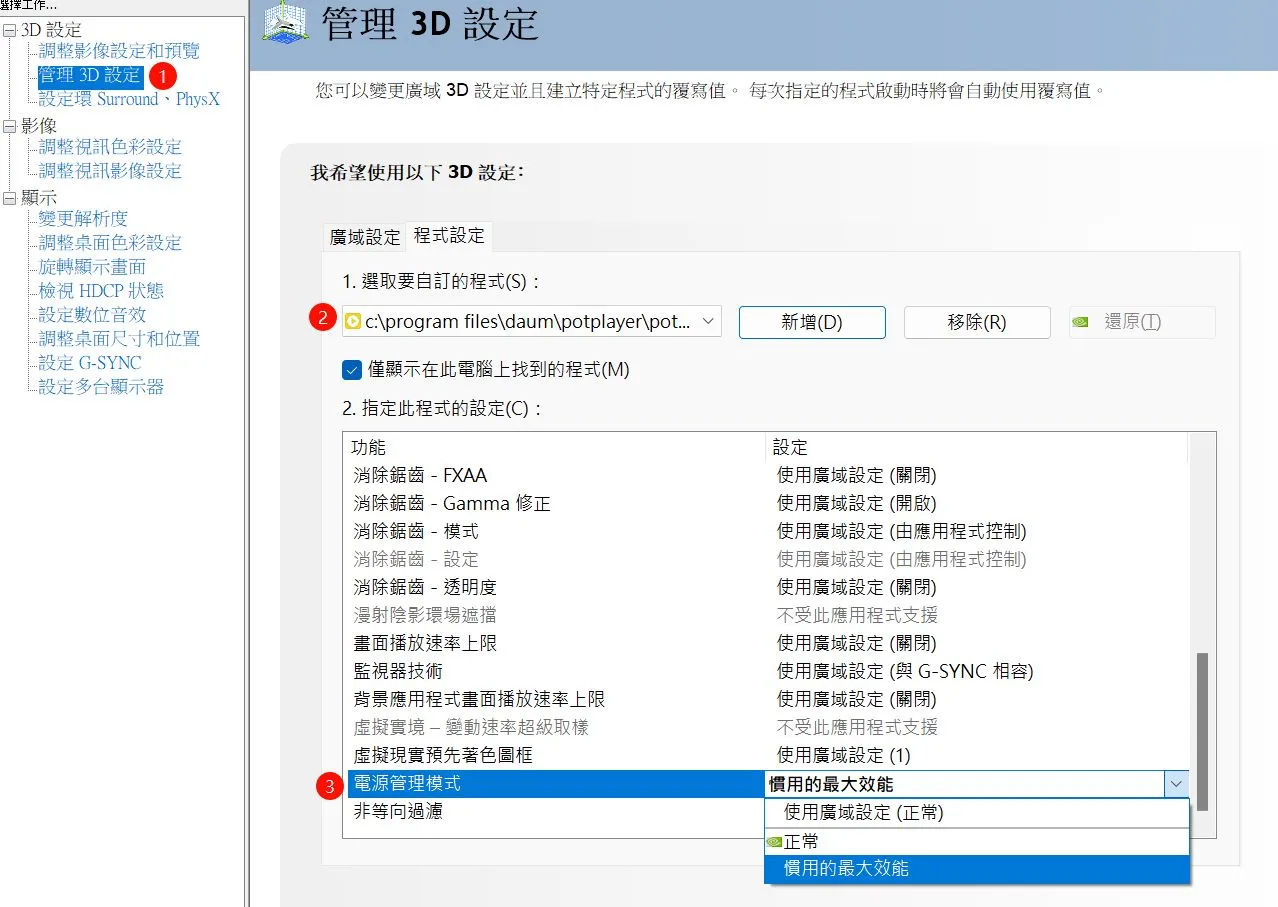
NVIDIA 顯卡設定
- 管理3D設定 > 新增PotPlayer > 垂直同步: 開啟 > 電源管理模式: 慣用的最大效能
- NVIDIA色彩設置
安裝madVR
-
將下載的madVR解壓縮
-
用系統管理員模式執行install.bat
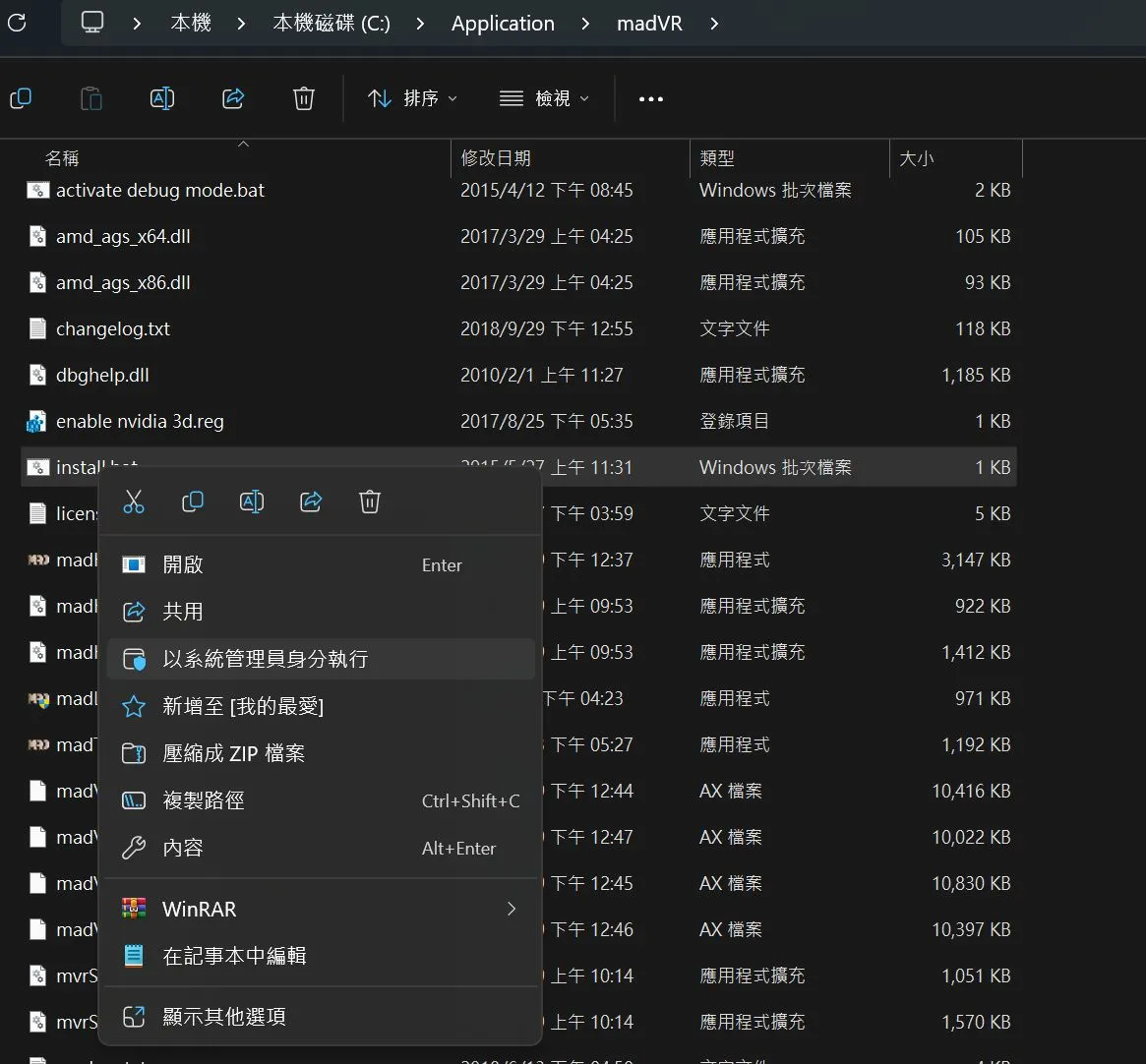
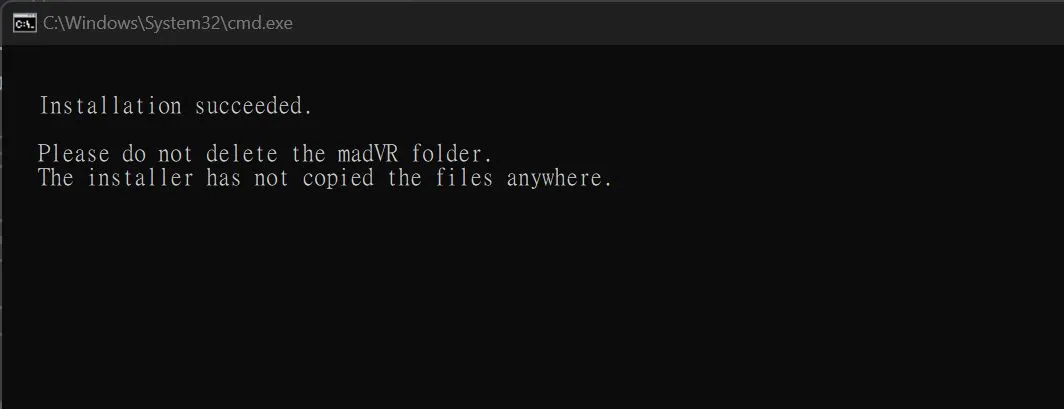
- 出現成功安裝
設置madVR
-
madHcCtrl 用來設置
-
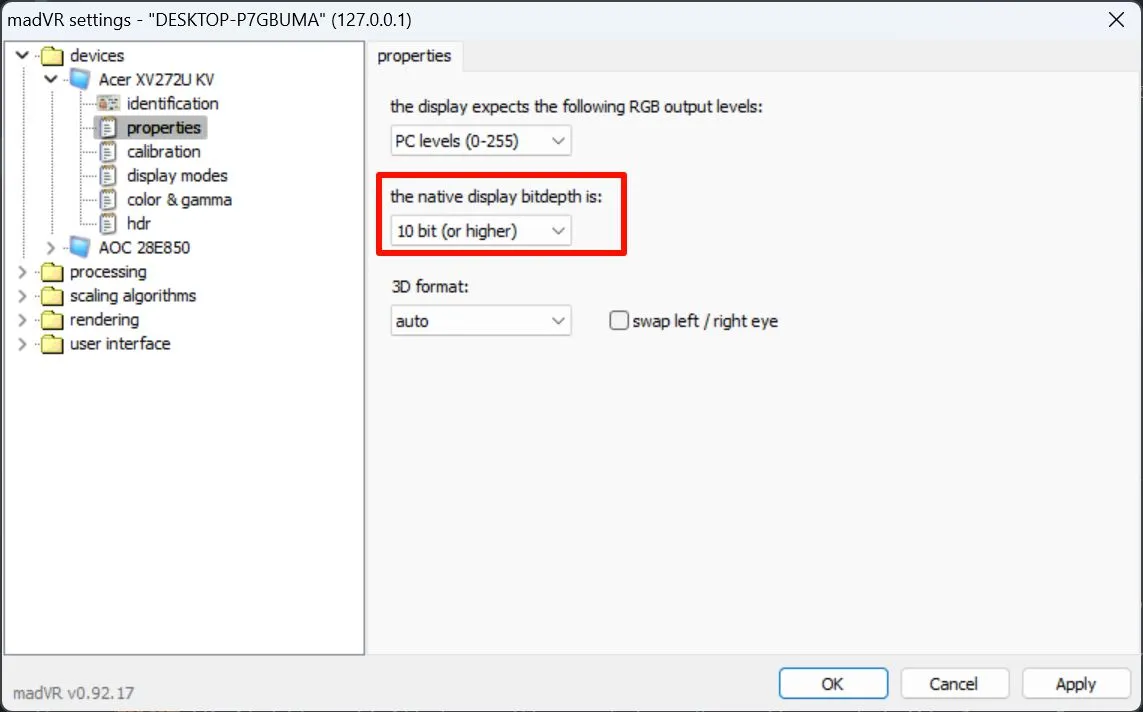
將螢幕設定為 Digital Monitor / TV 並設定10bit
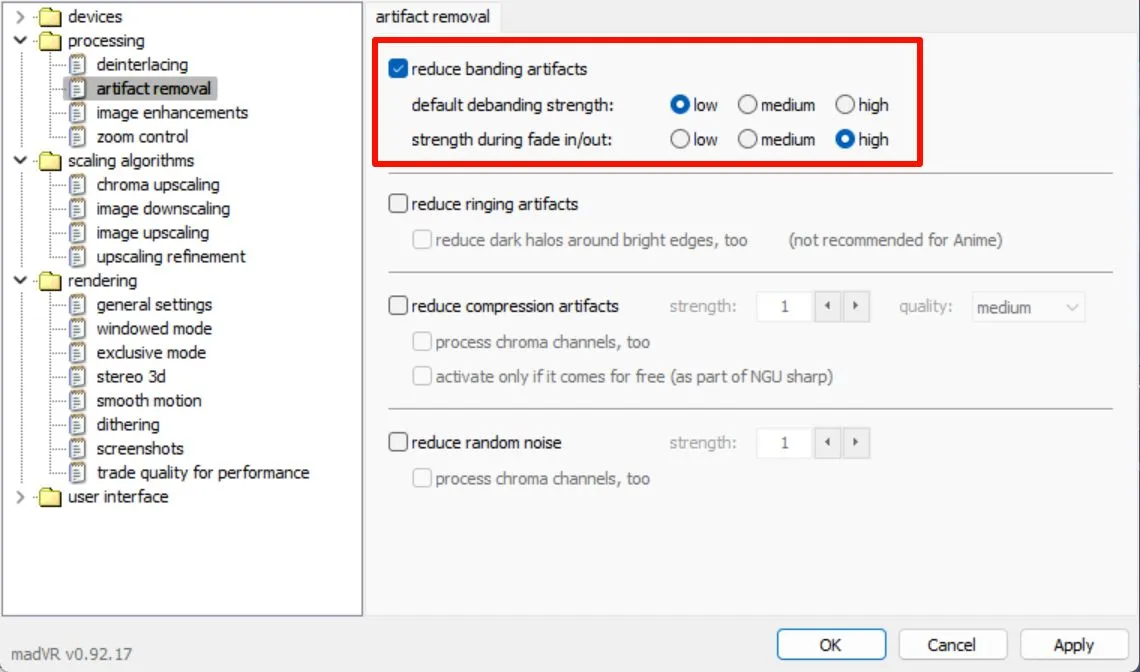
- 開啟去色帶功能
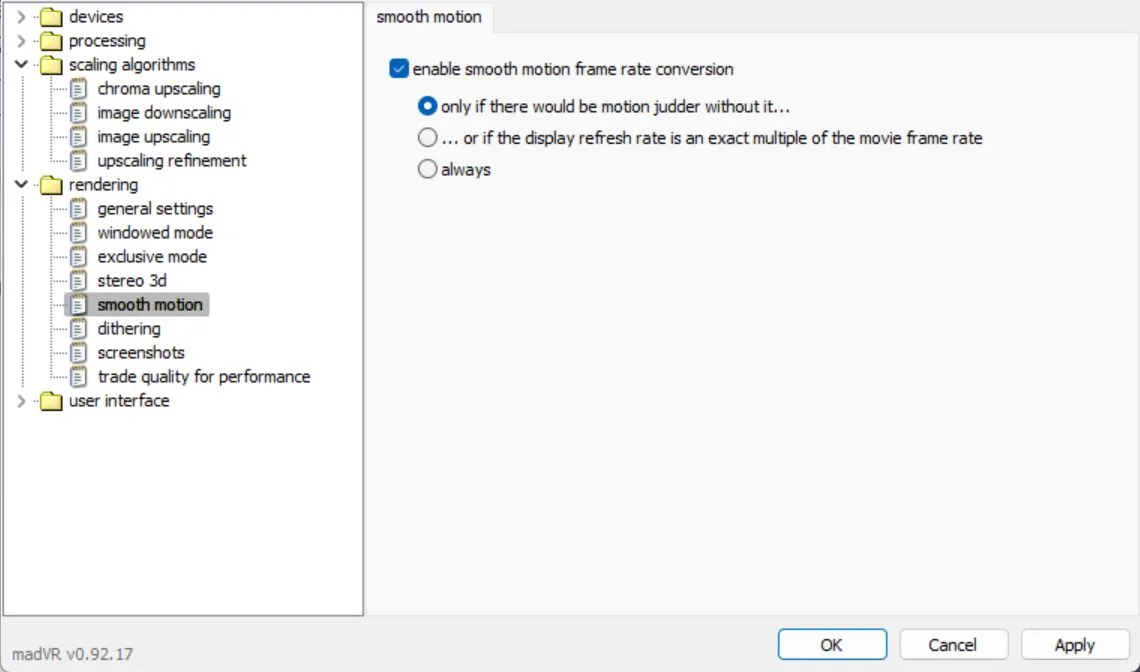
- 由於片源的幀數通常為24,螢幕的刷新率通常不是24的整數倍,因此建議開啟smooth motion功能。
- scaling algorithms
|效能要求| chroma upscaling | image downscaling | image upscaling |
|:—:|:—:|:—:|:—:|
| 低 | Cubic (Bicubic50) | Cubic (Bicubic50) + LL | Lanczos (3 taps) + SL |
| 中 | Cubic (Bicubic50) + AR | Cubic (Bicubic50) + LL + AR (relaxed) | Jinc + AR + SL |
| 高 | super-xbr (100) + AR | SSIM (1D – 100%) + LL + AR (relaxed) | NGU Sharp (medium) |
LL = “scale in linear light”
SL = “scale in sigmoidal light”
AR = “activate anti-ringing filter”
NGU Sharp 除了選擇 “luma doubling” 品質以外,其餘全部保留默認的 “let madVR decide” 即可
這裡對性能要求的高低並不絕對等同於畫質的高低
“低” 檔設置的品質其實已經相當好了
“高” 檔設置在一些低品質片源上反而有可能放大片源瑕疵
推薦 “中” 檔設置在畫質、功耗和泛用性之間較為平衡的選擇
K-Lite Codec Pack Full
- 包含 MPC-HC 和 madVR 的安裝包
https://codecguide.com/download_k-lite_codec_pack_full.htm